This guide has been developed to help students get started in planning for video assignments.

The navigation menu is separated into four pages:

  • Student Guide to Video Assignments
  • Recording your video
  • Submitting your video to Learn
  • Video Resources

Within each of these pages are sections with information (side menu), links and top tips on all the key points you need to think about when creating videos for assessment. You can click on "Top" (found in each sections) to go to the top of the current page.

If you are viewing this guide on a smaller device, you may only see the burger menu in the header. Click on the burger menu to see the other pages in this guide. Alternatively, if you would like to view this guide full screen on your device click on Student video assessment guide (full screen).


Using Generative AI (such as Chat GPT)

A further information and help page has been added to this resource. This includes university guidance on the use of Generative AI (such as Chat GPT).

]]>
Storyboarding is a great way to visually plan out all the elements that will go into your video to ensure consistency in design from font type,font size, transitions, colours, audio, music etc. The more planning you do in the early stages will definitely help later on when you come to edit your video.

]]>
film clapper boardSource: "clapper-board" by Joshua wilson (Pixabay) is licensed under CCO 


There are four basic storyboard elements that you need to think about once you read the video assignment brief:

  • Scenes

    • How will you tell your story in each scene through audio, video, images,text?

  • Description

    • Provide details for all the elements that will be used in your video.

    • Write a script using a conversational tone to add structure.

  • Multimedia

    • Make sure you use good quality images.

    • Will there be a combination of video and still images?

  • Audio

    • Record audio in small chunks for easy editing.

    • Always test audio to ensure consistent quality.

Use these basic elements to design your storyboard on paper, in MS Word, Ms PowerPoint or an online storyboard tool. What you may find with some online storyboard tools is the free version will limit options and/or functionality. For group video storyboards, each member could create an account and storyboard different scenes. You could then merge the different storyboards e.g. if the output was a PDF file, use a free combine/merge online tool.


Useful Resources

Online storyboard tool - Plot

Online storyboard tool - Canva

Online storyboard tool - MakeStoryboard 


  Top Tip

  • Look at examples of different styles of video for inspiration, see the Video Resources section in this guide.


]]>
Expand the accordian style menu below to read more information about sourcing multimedia resources in relation to Copyright:

]]>
If you do want to use third party images,sound or video in your video assignment you should check the terms of use. Most creative works are protected by a copyright license. Creative Commons licenses encourage the re-use, re-mix and distribution of creative work. Useful Resources (below) has links to websites that provide more information on the types of Creative Common licenses. You should clealy attribute third party resources so it is clear how much of the content is original.

]]>
When creating your video you may wish to use other people’s videos, news documentary clips, movie clips, music or still images. Before you do, BEWARE! Copyright law protects individual and company rights to the use of their media and prevents them being used by others. Although for assignment purposes, your submitted video will only be seen by you and the markers you should:

  1. Be aware of any copyright implications
  2. Consider whether you may wish to use the video in a wider context later – e.g. to market yourself, for CV purposes or to display to public audiences (YouTube, Vimeo, etc)

The law around using other’s video clips within an educational or documentary video states that in these circumstances, there is a policy of “fair use”. This means that it is still possible to use clips to make an educational point or as part of a review or critique – however….it is far from definitive. If, for example, you used a short clip from CNN or Sky news of an interview and used this to evidence an argument that you are making as part of your video documentary or essay, then that could be considered “fair use” – however you should only use the very minimum footage needed to make your point. In addition you should ALWAYS accurately reference any clips you have used. Conversely if you add someone else’s video footage because “it looks good” or “is funny”, without it being relevant to the key educational points of your video then you’re without doubt breaking copyright law. This is true too of music - even though you might find it available on the internet, you cannot use someone else’s copyrighted music as a soundtrack for your own video.

]]>
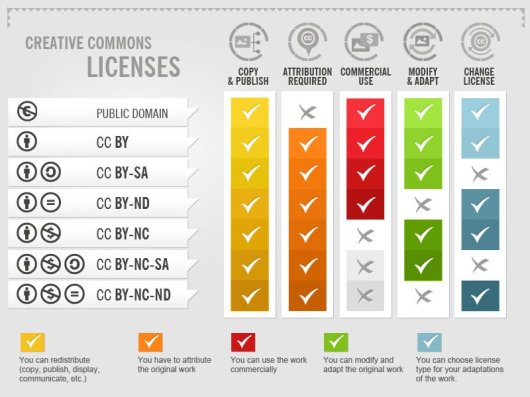
The image below outlines the different Creative Commons licenses and how you can reuse/remix someone else's content. Also, this short video by Creative Commons Aotearoa NZ provides an easy to understand overview of Creative Commons licensing.


Creative Commons licenses by Fotor

Creative Commons Licenses by Fotor (CC-BY-SA)

]]>
In some case it may be possible to get clearance from the copyright holder to use their material. You would need to contact the copyright holder directly and ask for explicit use to use their material. Although possible the terms of use would need to be very explicit – educational use only / timescale, etc. Although getting copyright clearance is possible, the time and effort required may make it impractical for assignment purposes. If your use of other’s video doesn’t clearly fall under “fair use” then you should look for resources that are licensed for reuse such as Creative Commons licenced media. Links to freely available / reusable media are listed below:


PIXABAY - https://pixabay.com/

PEXELS - https://www.pexels.com/

UNSPLASH - https://unsplash.com/search/photos/

FLICKR -  https://www.flickr.com/commons/usage/

ISO REPUBLIC -  http://isorepublic.com/

1 MILLION FREE PICTURES -  http://www.1millionfreepictures.com/

REALISTIC SHOTS -  http://realisticshots.com/

DESIGNER PICS -  http://www.designerspics.com/

]]>
Although within the University and your course assignment submission process you are unlikely to be pulled up for copyright clearances you should seriously consider copyright issues when creating your video. For example, if you were making a video for your employer you would be opening the company to potential legal action if you used non-copyright cleared content. It is your responsibility when creating video content to ensure that you are compliant with the law when it becomes to copyright. If you want to use the video you have created (either individually or as a group) to a wider, public audience outside of the assignment, then you cannot use any copyright materials that could open yourself or the University to potential legal action.

The following resources (even although directed at an American audience) highlights some of the main considerations for filmmakers when it comes to copyright – the law is broadly the same in the UK:

https://blog.frame.io/2017/08/30/copyrights-and-fair-use-for-filmmakers/

]]>
Giving some thought to your recording environment will result in the best quality video for audio and visual elements. If you are just recording audio, always test your audio first to check what your microphone will pick up. Choose a quiet space to limit background noise from family,pets,traffic and echoey rooms.


 Top Tips

  • Close all other applications when recording your screen to avoid notifications popping up.
  • Switch off your mobile phone when filming. 
  • Don't record facing the sun, as this will create a silhouette effect on your subject matter. 


]]>
A key consideration when choosing software to create and edit your video is ease of use. Any software that is overly complicated will eat away at your time and potentially shift your focus away from the criteria of the video assignment. Remember, video assignments are rarely designed to test your technical ability.

Whilst you are free to use any software for your video assignments, we can only offer support for the software provided by the University.

The tabs below provide more information on the range of software you can use to create and edit videos:


]]>
Thinking about using free or 30 day trial video editing software? If so, make sure you know the answers to the following questions:


Text box with questions about free video editing software


  Remember, video editing can be time consuming, so don't leave it to the last minute.


]]>
Video editing doesn't have to be complicated, so don't be put off by a busy interface. Depending on your approach to your video, you may only use a handful of the features within a software package. 


Some examples of desktop based tools:

•PowerPoint - tutorials , Record a presentation

•Microsoft Photos - tutorial 1 , tutorial 2 

•Imovie - tutorials

•Shotcut** - tutorials (installed on campus but it is open source, so can be downloaded)

Filmora9https://filmora.wondershare.com/video-editor/

Davinci Resolve 16 https://www.blackmagicdesign.com/uk/products/davinciresolve/

VSDC Free Video Editor -  http://www.videosoftdev.com/free-video-editor

ClipChamphttps://clipchamp.com/en/

Movavi OpenShot -  https://www.movavi.com/videoeditor/?gclid=EAIaIQobChMIusfIiObB6AIVmpntCh2iqwBrEAAYAiAAEgIKIvD_BwE


Star Business School Software

** Shotcut is installed on all Business School Computer Lab pc's including the Hub (PG only). You can also download this software for free onto your laptop or pc.

]]>
There are many cloud based video editing tools available on the internet, some offer free time/limited accounts whilst others require a subscription. Free accounts will more than likely have a watermark in the final video.

Examples of cloud based video tools:

Note: Although not a video tool in the same way as the above example, MS PowerPoint (Office 365) can be used to convert a presentation into a video, see the following website for details: Ms PowerPoint (Office 365)

]]>
There are countless apps that can transform your smartphones and tablets into powerful video creation devices. If you aren't comfortable working on a small screen then you can always use your mobile for some elements of your video e.g. audio and export it into a desktop application (ShotCut and Camtasia in UEBS computer labs) to complete the editing stage.

Examples of mobile video editing apps:

FilmoraGo (Android, iOS) - tutorials , 

KineMaster - tutorials


Useful Resources

UoE Central Library - Available Equipment & Booking Information

Mobile Devices - DIY Film School Online Course

iMovie for iOS Essential Training (Lynda.com)


 Top Tip

  • Shoot your video horizontally when using a mobile device.
  • Always check audio levels. Consider using a usb microphone.
]]>
Depending on the video assignment brief, it's good to start thinking about the equipment you will use to create your video early on. For example, if the assignment requires interviewing people or talking to camera (Vlog style) it's important to get a steady shot, so consider using a tripod or propping the camcorder or mobile device on something stationary. If you don't have a tripod for a camcorder or mobile device, plan ahead so you can book out equipment from AV loans (Central Library) or UoE DIY Film School.

Don't leave booking equipment to the last minute, plan ahead to avoid disappointment.

Student AV Loans information

Note: If you haven't used any of the AV equipment before you can book a familiarisation session via the Help and Support section within the AV Loans system (see AV Loans How To Guide For Users for details ).

The tabs below provide more information on the range of equipment you can use to create videos:

]]>
The Central Library has a wide range of AV Equipment available for loan, including:

  • Camcorder, DSLR Cameras, Tripods, Camera lighting kits,
  • Microphones (various), Audio recorders, Speakers,
  • Projectors, Projection screens, Projector stands
  • Graphic tablets, Portable PA systems, Laptops (Win or Mac)

Photo of a camcorder

  Top Tips

  • Always book out a tripod and external microphone with a camcorder to ensure a steady shot and good audio.

Please contact learningspacestechnology@ed.ac.uk for further information

]]>
If you are using your own laptop or pc you may already have video editing software installed e.g. Mac's video editing software is iMovie. Windows used to have MovieMaker but this has been replaced by Windows Photos. Unfortunately, Windows Photos does not have the same functionality as Windows MovieMaker. 

Photo of a laptop

 Top Tip

  • Use an external microphone instead of the inbuild mic in your laptop for better quality. 
]]>
How are you going to record audio for your video? You don't need to have expensive equipment but you should use the same audio equipment throughout your video and preferably in the same location. An outdoor venue is going to pick up a lot of background noises in comparison to a quiet room indoors.

Inexpensive headsets with microphone, usb microphone or a voice recorder app on a mobile device can all give you a good quality audio recording.

Photos of audio devices

 Top Tips

  • Record audio in chunks
  • Always perform an audio test


Useful Links

Audacity - record and edit audio.

Audacity User Guide

]]>
Mobile devices have become increasingly popular for video creation and there are a wide range of apps available for both Android and iOS. Many of the video editing apps come with filters, overlays, transitions and creative commons music to make the process of creating and editing a video easier for the less technically minded.

Photo of tablet, iPad and mobile phone

 Top Tip

  • Make sure your mobile device is fully charged before recording video or audio. 
  • Record with your phone in a horizontal position.


Useful Links

FilmoraGo (Android, iOS)

VivaVideo (Android)

KineMaster (Android, iOS)

How to use the ShoulderPod-X1 kit for mobile phones (walk-through video)

]]>
Being aware of the file types and size of files can make all the difference when it comes to submitting to your video to Media Hopper Create. The bigger the file, the longer it will take to upload, particularly if you are off campus. However, there are a number of ways to reduce the size of your video:

  • Use common file formats for audio: (.mp3), images (.jpg or.png),video (.mp4). Be aware .MOV files from IOS devices are large and can significantly increase the time it takes to upload your video.
  • If you do use a camcorder and the file is large, you can use tools like Handbrake which is free, to compress the size of your video without compromising on the quality. There are videos on YoutTube on how to do this.
  • If your video mainly consists of still images, make sure you use .jpg or png. (if using transparent images) . The two websites listed below under Useful Resources can compress your images without compromising on the quality.
  • Altering the video dimensions, frame rate can also help keep down the overall size of your finished video.

example of Webresizer image

Useful Resources

Picresize

Webresizer

]]>
Credits

If you are creating a group video assignment, it's good practice to add credits to indicate who was responsible for what sections. Some students have been creative with this in the past, borrowing professional film job titles e.g. Music composer, Editors, Director of Photography, Writers etc. Alternatively, you can keep it simple by listing the members of your group and their role. 

Adding the credits to your video doesn't have to be complicated, it can be a PowerPoint slide with text saved as an image and imported into your video editing software. It's probably best to avoid the Star Wars scrolling credits effect.

Referencing

The Cite them right online guide subscribed to by the University Library provides a comprehensive guide to the Harvard style.

Use the drop-down menus to select the source type to find out how to reference using the Harvard style.

Note: You may want to check with your Course Organiser if credits and referencing is to be included video assignment or listed as a separate file.

screenshot of Cite them right online guide

]]>
This resource was created using a Bootstrap template within Xerte Online Toolkits (Xerte). Created by Alison Christie, Learning Technologist, University of Edinburgh Business School, 2023-2024

Creative Commons Licence

This work is licensed under a Creative Commons Attribution-NonCommercial-ShareAlike 4.0 International License.

]]>
If you need to do any filming for your video, don't underestimate how long it will take to edit your content. You will invariably have way more footage than you will actually require. Refer back to your storyboard and the criteria for the assignment, make sure your storyboard and the subsequent edits to your video help convey your message.

]]>
Recording with a smartphone Source: "Smartphone",by AlbersHeimann (Pixabay) is licensed under CCO

 Top Tips

  • Check audio levels.

  • Check light levels

  • Always choose footage that conveys your message and not because it looks cool.

  • Make sure camcorder or mobile device is fully charged.

  • Record in HD for best quality (1080p)

  • Playback your finished video before submitting, make sure that it meets the assessment criteria. 

  • Get someone else to review your video to see if they can pick up on what you are trying say in your video.

]]>
How to submit your video submission to a Learn assignment

All video assignments in the Business School from September 2025 will follow the Central IS guidance, which involves two steps:

Step 1: Upload your video to Media Hopper Create (MHC).

Step 2: Link to your video on MHC from the Learn assignment.


Follow the Submitting a Video Assignment guide carefully.

]]>

Video Tutorials

Camtasia Studio Tutorials

Learn all that you need to know for editing videos in Camtasia Studio 9.

Lynda - Camtasia Studio Playlist

Playlist covering the essentials for beginners and more advanced techniques for video editing in Camtasia Studio 9.


Top Tips

Best practices for writing film credits

A blog post by Vimeo on best practices for writing film credits. Although aimed at a professional market, there are still some useful tips around creating a visual impact to capture your audiences attention.

Filming an interview with an iPhone

Good tips on how to film using a mobile device. Remember to position your subject, whether that me yourself (as in a vlog) or an interviewee just off from the centre.

12 Engaging Types of Video Content that Viewers Love to Watch

An interesting read that demonstrates the power of video.

Jisc - Digital Storytelling

If your video assignment is more along the lines of a documentary, it's worth looking at Jisc's resources on Digital Storytelling.

How to make a video go viral: The Magic Formula

Blog post with quick tips on what makes a good viral video.

6 Qualities To Make Your Videso Go Viral

Blog post from Forbes.


Inspiration

Short of the week

Curated short films from around the world covering different genre, topics and styles.

The Future of Storytelling

Example of a talking head camera style video with additional call outs added at the editing stage.

Andrew Stanton - The clues to a great story

From the writer of Toy Story, Andrew Stanton talks about storytelling in the medium of film.


]]>
The following links open in a new browser tab:

UoE Taught Assessment Regulations Academic Yr 2022/23 (Regulation 29, Academic best practice)

Guidance for students on the use of Generative AI (such as ChatGPT)

What is referencing? (Institute for Academic Development (IAD))

Academic Standards (Institute for Academic Development (IAD))

Referencing and avoiding plagiarism (Institute for Academic Development)

Academic Support (Edinburgh University Students' Association)

]]>